
How to annotate a PDF during an online lesson
A practical way to prepare a PDF worksheet, annotate it with a student and leave a clear lesson record instead of exchanging screenshots.
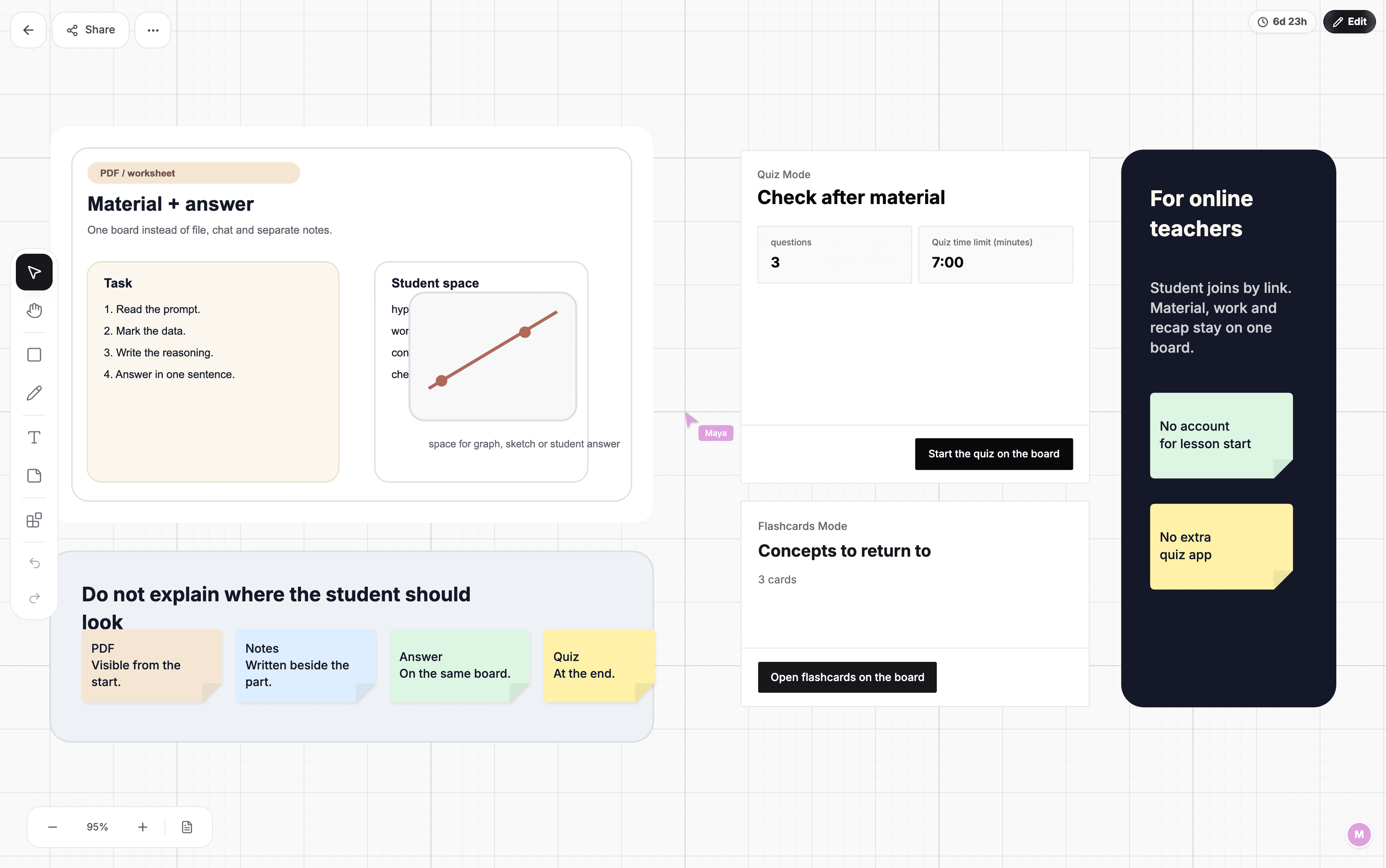
PDF work is easiest when the source material and annotations share the same space. Screen sharing lets a student look at a document, but makes pointing, marking and adding their own answer awkward. Importing the PDF onto a shared board turns it into part of the lesson.
Screen sharing or a PDF on the board?
Screen sharing works for a quick tour of a document. A shared workspace is more useful when the material will stay on screen for several minutes and needs highlights, calculations or student responses. Both people can refer to the same exact place without describing where to look.
Prepare the file before class
- Select only the pages needed for the current topic when the full file is long.
- Check that text and diagrams remain readable when a page fits on a laptop screen.
- Leave empty space beside the document for reasoning, comments and student work.
- Add a short lesson goal so the worksheet is not the only source of structure.
Keep annotations readable
Avoid writing the entire solution over the task. Highlight the data, keywords and point of error on the PDF, then place longer calculations or explanations beside it. The student can still see the original question and connect it to the reasoning.
Assign colours to purposes rather than people. One colour can identify given information, another a question or error, and a third the result. Consistency makes a long worksheet easier to review after class.
Bring the student into the PDF workflow
Instead of marking every detail yourself, ask the student to underline the relevant information, point to evidence for an answer or enter the first step. A student without a stylus can still use text, shapes or a cursor. Their action should remain visible in the same context as the document.
For a multi-step problem, reserve a separate area for the student's attempt. Your explanation will not cover their work, and comparing the two approaches will not require switching pages.
What should remain after the lesson?
Mark the completed tasks, add a one-sentence recap and identify the section to revisit independently. You do not have to export after every class when the student can return to a persistent board. Export is useful when you need a closed copy or want to continue outside the application.
When a PDF is not the right format
If you only need to show one short definition, pasting text or an image is faster. A shared text editor is better when the task involves rewriting paragraphs. A PDF on a board is strongest for worksheets, problems, diagrams and source material that needs visible annotation.
See how PDF annotation works in Lucyboard, or read the complete online tutoring session plan.